Integration
WordPress. Publish without copy and paste.
The WordPress integration lets Varf publish approved articles to your site through the WordPress REST API. Posts go out as drafts or live, with categories, tags and a featured image, and new versions update the same post.
What Varf does on your site.
- Creates a post for each approved article, as a draft or published.
- Updates the same post when you publish a new version.
- Uploads the featured image to your media library.
- Sets categories and tags.
- Never deletes posts: deleting an article in Varf leaves the post on your site.
Set up in four steps.
- 1
Create an application password
In WordPress, open Users › Profile, find Application Passwords, enter a name such as Varf and create it. Copy the password. - 2
Add it to Varf
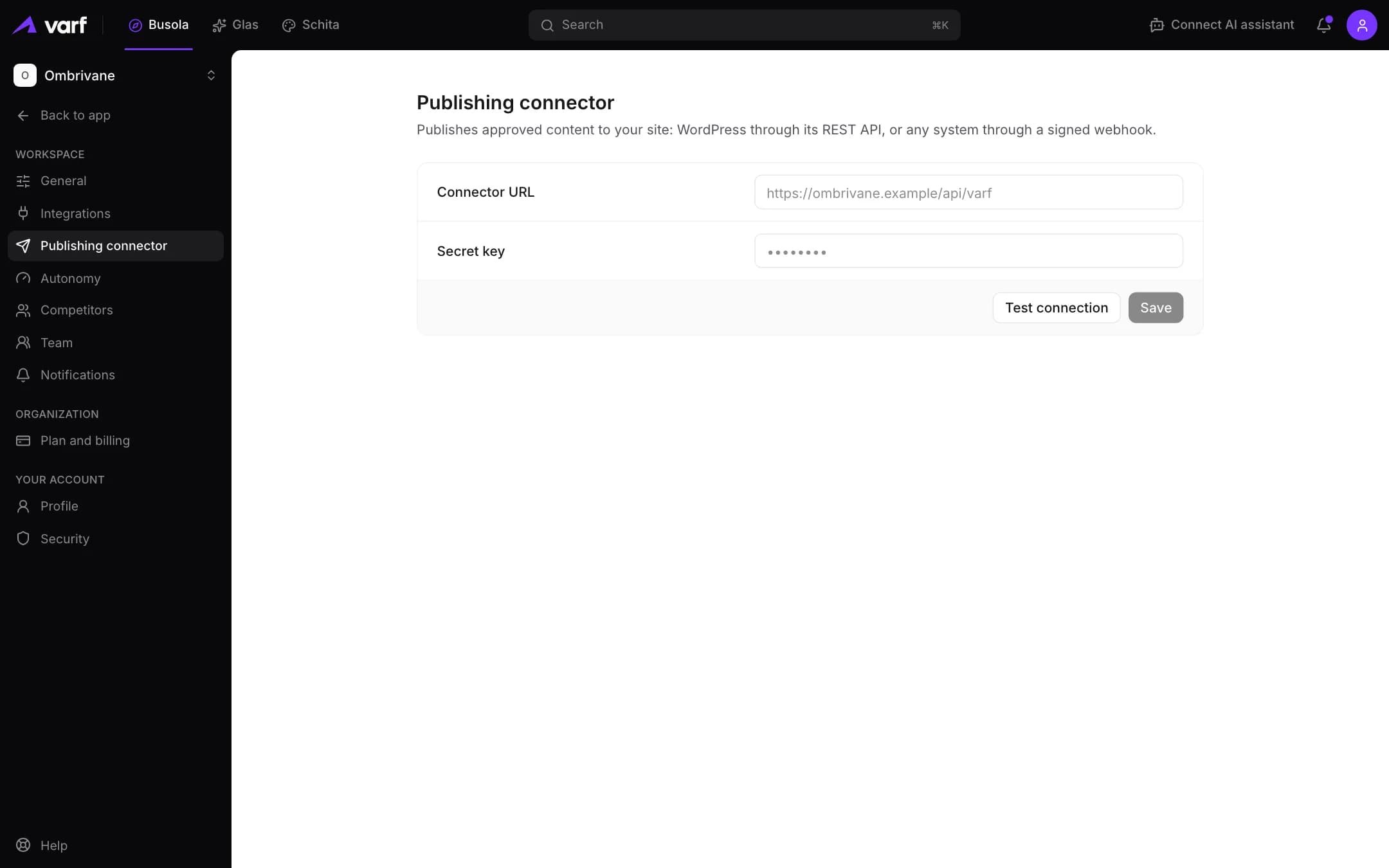
In Settings › Publishing connector, choose WordPress and enter your site address, your WordPress username and the application password. - 3
Choose defaults
Pick whether posts go out as drafts or published, and the default categories. - 4
Test and save
Varf checks the connection before saving. If something is wrong, it says what.
Requirements.
- Your site is reachable over HTTPS.
- The WordPress REST API is on, as it is by default.
- Create the application password with an Editor or Administrator account.
- WordPress 5.6 or later, which has application passwords built in.
When articles are published.
In manual mode you publish each approved article yourself. In semi-auto, approving an article publishes it. In full auto, articles that pass every check are published on their own, up to 3 a day. You can also schedule an approved article for a date and time.
Frequently asked questions
Why an application password?
It is a separate password just for Varf. You can revoke it in WordPress at any time without changing your own password.
Can Varf send posts as drafts only?
Yes. Choose draft as the default status and every article arrives as a draft for you to publish in WordPress.
Do I need a plugin?
No. Varf uses the REST API and the application passwords built into WordPress.
What if I edit the post in WordPress?
Your edits stay until you publish a new version from Varf, which replaces the post’s content.
My site isn’t on WordPress.
Use the webhook integration: Varf sends each article as signed JSON to your own endpoint.
Put your site on the loop.
Add your site and connect Search Console. Varf starts collecting right away and shows its first findings as soon as the first sync finishes.